Now you can connect an AI agent to your BeanHub books
Hey 👋 It’s been a while. You may wonder what we’ve been doing 😊 Today we are glad to announce hosted MCP (Model Context Protocol). You can connect your BeanHub account to an LLM agent you already use: ChatGPT, Claude, Grok, Cursor, or anything else that speaks remote MCP with OAuth. We held this back for a long time. We worry about privacy. We worry about models making up numbers. After thinking it through, we landed here: it’s up to you which tools you trust. We give you the controls. You decide whether to turn it on. We hate forcing features on people. We also hate the unsolicited AI chat bubble in the corner of every website. Clippy is back, and nobody asked. 😱
Nowadays every website has an AI dialog that pops up from the bottom right corner, and nobody ever asked for it 😅
If you don’t want this, that’s totally cool. MCP is off until you turn it on. We won’t put a chatbot in your face.
Turn it on
- Sign in at https://app.beanhub.io.
- Open Account Settings, then Manage MCP, or go straight to https://app.beanhub.io/mcp/.
- Turn on Enable Model Context Protocol (MCP).
- Click Save MCP settings.
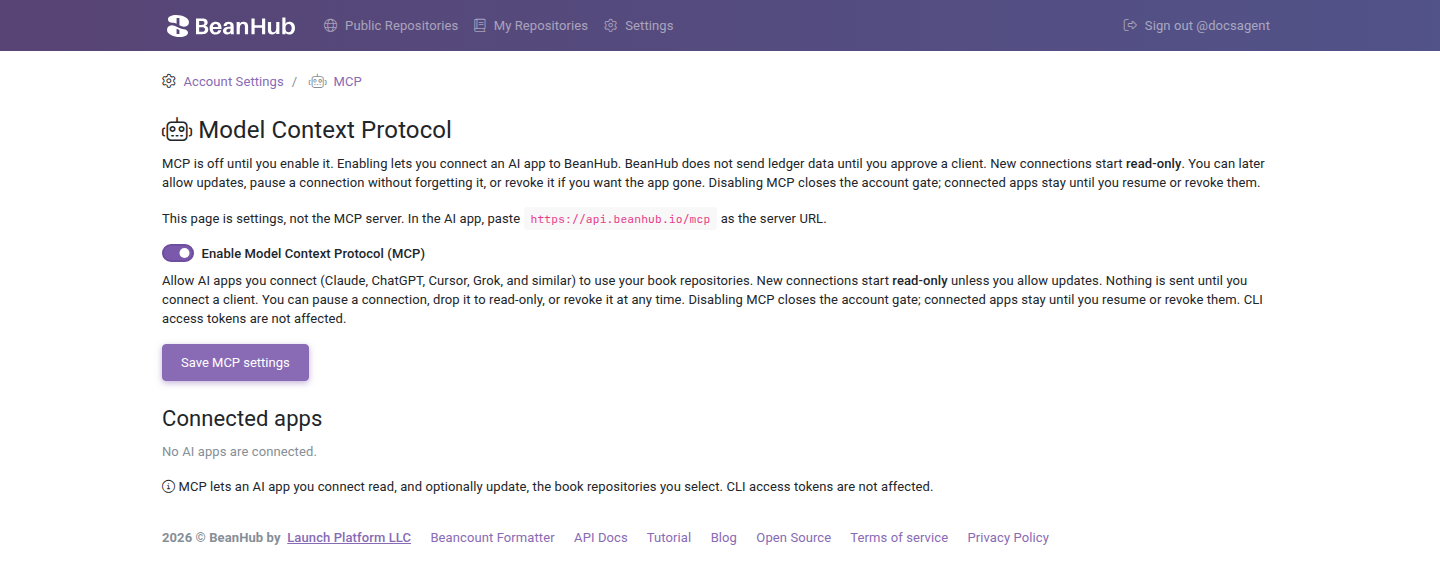
Copy the server URL from that page: https://api.beanhub.io/mcp. Paste that into the AI app. Don’t paste https://app.beanhub.io/mcp/. That’s the settings page, not the server.
New connections start read-only. You pick which books the app can see. You can allow updates later without reconnecting.
Then follow the client steps in our docs: Connect an AI app with MCP.
Yes, by the way, we have a new docs site: https://docs.beanhub.io.
Last year we also shipped a local bh mcp server in beanhub-cli. That one reads files on your laptop. Hosted MCP is different. The app signs in with OAuth. It doesn’t use a CLI access token.
In the AI app, add a custom MCP server and paste https://api.beanhub.io/mcp. The app opens BeanHub’s connect page. Sign in if asked, pick books, leave Allow this app to update books off unless you want writes, then click Allow access.
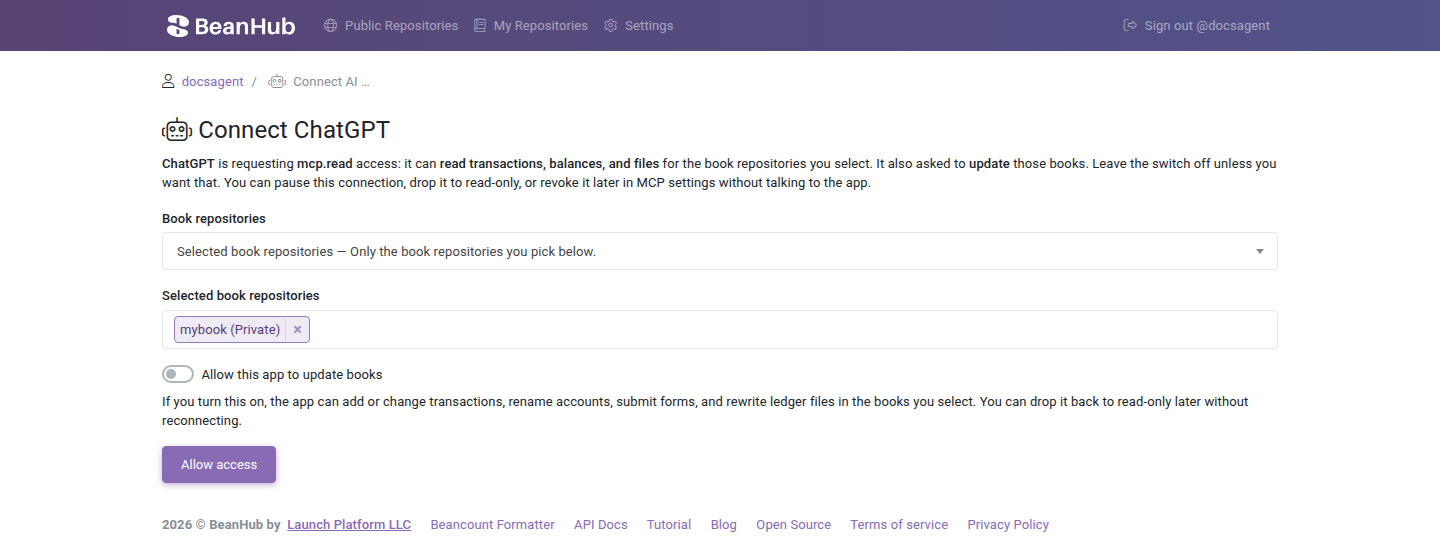
Ask questions. Update books if you let it.
Once connected, you can ask about balances, transactions, accounts, files, forms, and commits. 🤯 If you turn on Allow this app to update books, the agent can add or change entries, rename accounts, submit a custom form, or rewrite ledger files. Every update is a Git commit after Beancount validation, same path as the website. If the agent messes up, you can revert the commit.
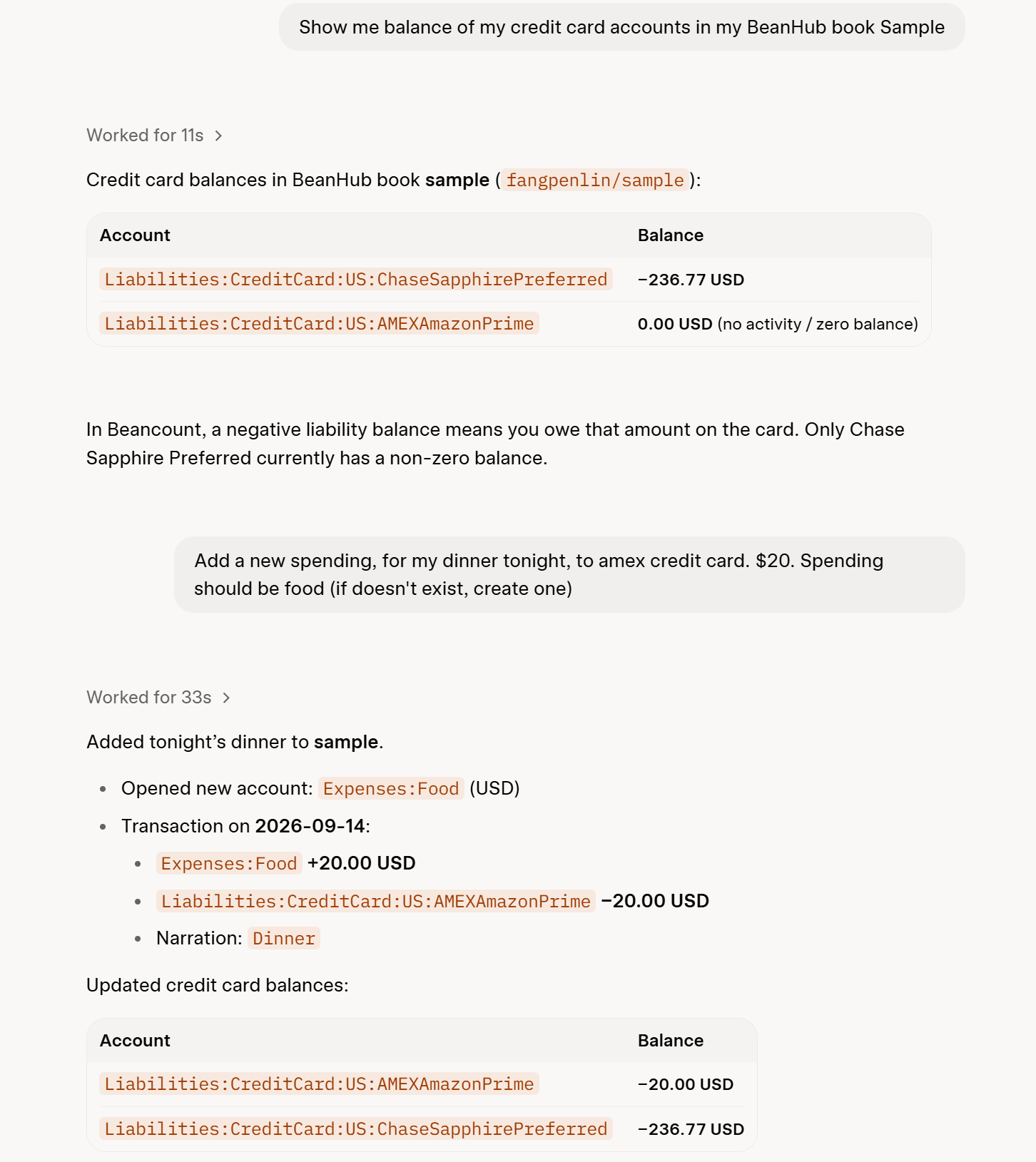
A Grok chat asking for the current credit card balances, then asking it to add a new dinner transaction.
The app cannot mint access tokens, change billing, connect a bank, dump Connect or Inbox data, make a book public, or delete a book. Inbox and bank-connect APIs are out of scope. Files already in a granted book, including imported bank CSVs, are in scope if you grant that book.
You stay in control
On MCP settings, each connected app has:
- Allow updates: read-only or write
- Paused: shut the gate, keep the connection
- Edit books: change which repositories the app can see
- Revoke: forget the app. It has to connect again.
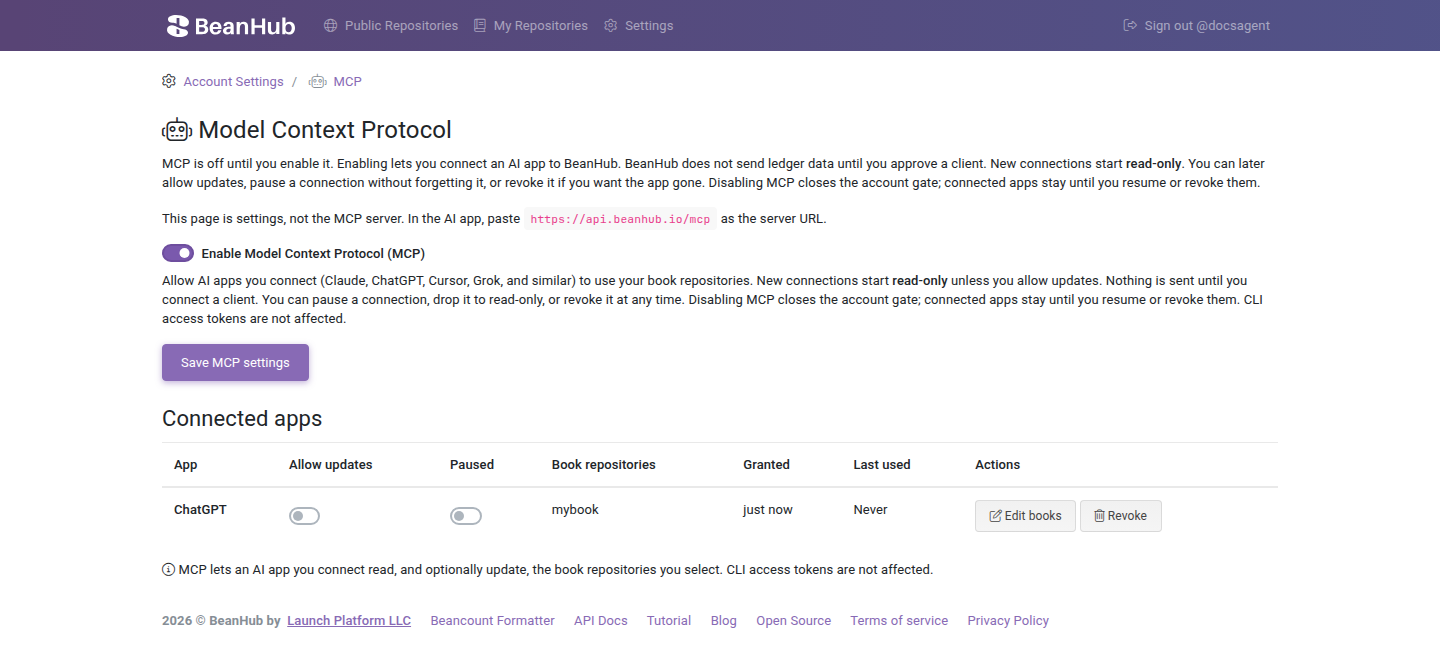
Turn MCP off on the account if you want the whole gate closed. That’s not the same as Revoke. Connected apps stay until you revoke them.
Frequently Asked Questions
Q: Do you train a model on my data?
A: No. BeanHub doesn’t use your books to train our own models. We only relay the MCP request and response between your books and the app you connect. We can’t check that the model’s output is right. The AI app is a different story. Read that provider’s privacy policy before you connect. If that bothers you, use a local LLM that stays on your computer. We recommend that if you care about this.
Q: Can I choose read vs write, and which books?
A: Yes. You pick books on the connect screen. New connections start read-only. You can allow updates, drop back to read-only, pause, or change books later without talking to the app.
Q: Should I trust AI with my books?
A: No. Be careful. It’s a helpful tool. It doesn’t replace an accountant. Models make things up. Check numbers, accounts, and any proposed change before you rely on them. If you need professional advice, get a professional.
Q: Which AI apps do you support?
A: Anything that can do remote MCP with OAuth, register a public client (no client secret), and open a browser for BeanHub’s connect page. We wrote steps for ChatGPT (developer mode), Claude, Grok, and Cursor. We don’t vet the apps. The name on the connect screen comes from the client.
Q: Is this on by default?
A: No. Nothing is sent until you enable MCP and approve a client.
Q: Does this use my access token?
A: No. Hosted MCP uses OAuth. A CLI access token doesn’t work with MCP. An MCP token doesn’t work with the HTTP API.
Q: What happens to data the app already pulled if I revoke?
A: Revoke stops future access. It doesn’t delete copies the app already has.
Q: Can I try this without sending data to a big model provider?
A: Use a local LLM client that speaks MCP and OAuth, or use the local bh mcp server on your laptop.
Upcoming price change
We always work hard to add value to our product and may raise the price in the near future to reflect that. Don’t miss the chance to subscribe now at the current price and enjoy hosted MCP plus other upcoming features before the price goes up.
As usual, email support@beanhub.io if you have feedback. 😄